Laptop Speaker Cleaner
Laptop Speakers Refreshed, Sound Perfected
PRESS START TO CLEAN APPLE SPEAKER
Are your laptop speakers starting to sound muffled, distorted, or quieter than usual? Over time, dust, moisture, and microscopic particles can build up inside your speakers, blocking sound and dulling audio clarity. It’s a common issue that can happen with everyday use, whether you’re streaming music, watching movies, gaming, or joining online meetings.
If you’ve noticed your laptop’s sound performance slowly fading, it’s a clear sign that it’s time for a proper cleanup. Using a laptop speaker cleaner is one of the simplest, safest, and most effective ways to restore your speaker’s performance without opening your device or spending on repairs.
In this guide, we’ll walk you through why laptop speaker cleaning matters, how to use tools like Fix My Speaker to refresh your sound, and what to do if your laptop speaker is not working at all.
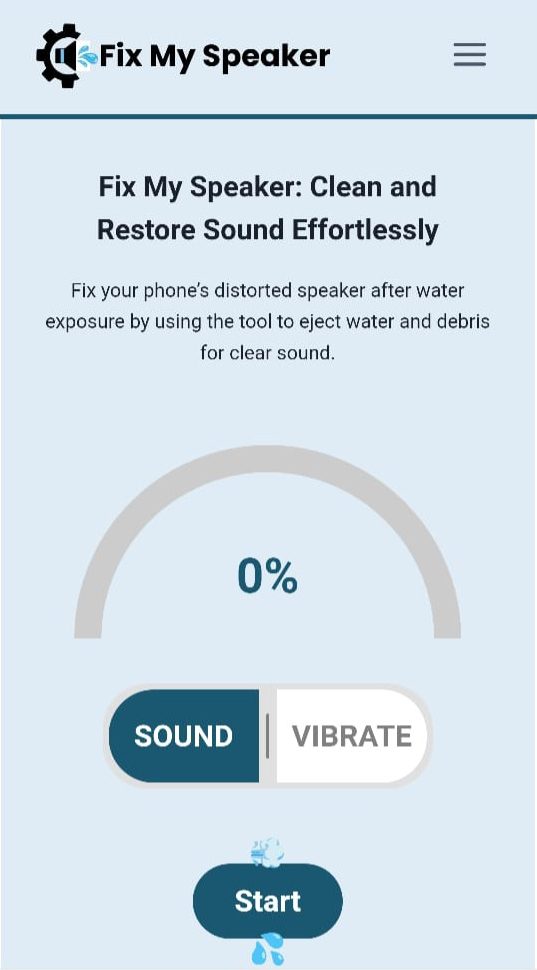
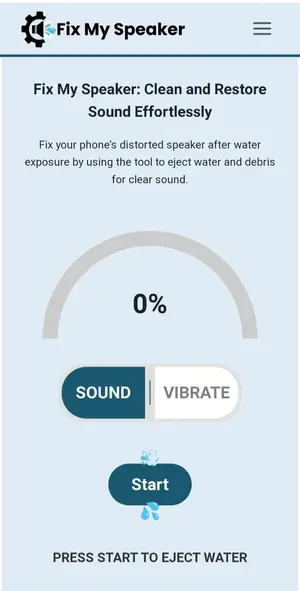
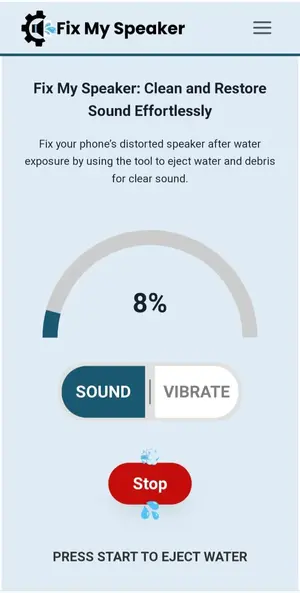
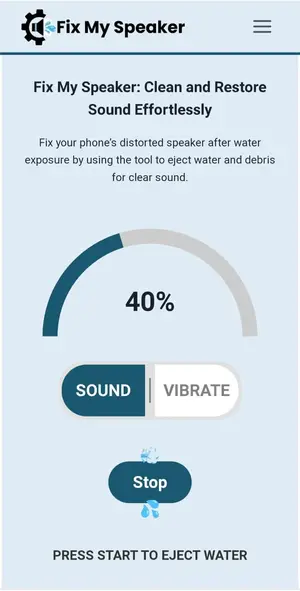
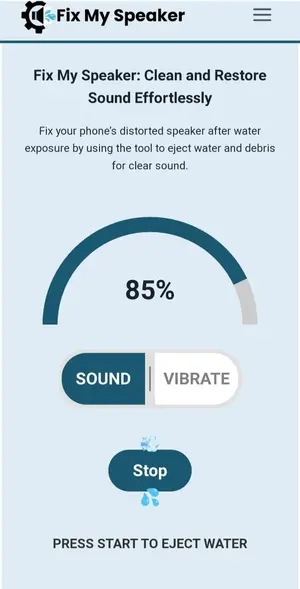
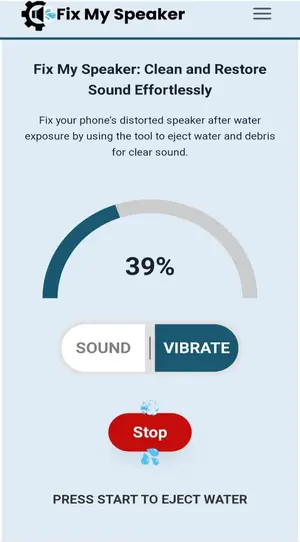
Laptop Speaker Cleaner Interface
Why Cleaning Your Laptop Speakers Matters
Laptop speakers are small, delicate, and essential for everything from work to entertainment. Unlike external speakers, they’re built into the chassis, which makes them more vulnerable to dust buildup and moisture damage over time. Regular maintenance helps prevent long-term audio issues and improves performance.
Here’s why cleaning matters:
1. Restore Original Sound Quality
When dust covers your speaker’s grille or enters the diaphragm, it reduces the speaker’s ability to vibrate freely. This results in muffled audio and poor bass response. A simple cleaning can bring back that crisp, rich sound you originally enjoyed.
2. Extend Speaker Lifespan
Dust and moisture can cause corrosion or block air passages, leading to overheating and early speaker failure. A clean speaker stays cooler, performs better, and lasts much longer.
3. Maintain Hygiene
Laptops are used daily and accumulate germs, especially around high-touch areas like speakers and keyboards. Cleaning the speakers helps maintain better overall device hygiene.
4. Better Aesthetic Appeal
Nobody likes a dusty laptop. A clean speaker grille not only improves sound but also makes your laptop look more professional and well-maintained, especially in work environments.

How Dust Affects Laptop Speaker Performance
Dust is more than just a cosmetic issue—it can directly impact performance in several ways.
Sound Blockage
When dust accumulates around the speaker grill or diaphragm, it acts like a barrier, making the audio sound distant or covered. This is often why users search “my laptop speaker is not working” or “laptop speaker crackling sound” — the problem often isn’t the hardware itself, but the obstruction.
Volume Drop
Clogged grills and ports can trap the sound waves inside the chassis. As a result, even when the volume is maxed out, the output remains low.
Distorted or Crackling Sound
Fine dust can interfere with the movement of the speaker diaphragm, causing vibrations to distort. That’s when you start noticing crackling or buzzing sounds, especially at higher volumes.
Long-Term Damage
Moisture and dust combined can damage the delicate coils and membranes inside the speaker. Over time, this can result in permanent speaker failure — especially in models like HP Pavilion Laptop or Lenovo ThinkPad X1 Carbon, where speaker components are tightly integrated.
How to Use Laptop Speaker Cleaner — Step-by-Step Guide
One of the easiest ways to clean your laptop speakers is by using an online speaker cleaner tool like Fix My Speaker. This method doesn’t require opening the laptop or using any special equipment. It works by playing high-frequency sound waves and audio pulses that help shake loose and push out trapped dust or water.
Step 1: Access the Speaker Cleaner Tool
Visit the official Fix My Speaker website using your laptop browser. Make sure your laptop is connected to a stable power source and not in silent mode.
Step 2: Turn Up the Volume
Increase your volume to the maximum level. This step is crucial because the sound wave technology relies on strong vibrations to expel dust and moisture effectively.
Step 3: Place the Laptop on a Flat Surface
Set your laptop on a flat, solid surface to ensure even distribution of vibrations. Avoid holding it in your lap during cleaning.
Step 4: Start the Cleaning Cycle
Click the “Start” or “Clean Speaker” button on the website. The tool will begin playing a series of special sound frequencies designed to clear your speaker ports.
Step 5: Let It Run
Let the cleaning cycle complete fully (usually around 30–60 seconds). During this time, keep the laptop still to allow maximum vibration impact.
Step 6: Inspect and Repeat if Needed
After the cycle ends, play some music or run a laptop speaker test. If the sound is still muffled, repeat the cleaning cycle a couple more times.
Step 7: Wipe the Exterior
Gently wipe the speaker area with a soft microfiber cloth to remove any loosened dust. Avoid using liquids directly on the speakers.

Laptop Speaker Cleaner vs. Traditional Cleaning Methods
| Feature | Laptop Speaker Cleaner Tool | Manual Cleaning |
|---|---|---|
| Cleaning Method | Sound wave & vibration technology | Cotton swabs, brushes, compressed air |
| Safety | Non-invasive, no disassembly required | Risk of pushing dust deeper inside |
| Time Required | Less than 2 minutes | 10–20 minutes |
| Effectiveness for Dust | High | Moderate |
| Effectiveness for Moisture | High | Low |
| Required Skill | None | Some technical care needed |
| Cost | Free | May require cleaning tools |
As you can see, sound-based cleaning is faster, safer, and more efficient, especially for everyday maintenance.
Why Choose Fix My Speaker Laptop Tool?
If you’re wondering why tools like Fix My Speaker stand out, here are some key advantages in Laptop Speaker Cleaner
This makes it the ideal solution if you’re searching for quick fixes like “laptop speaker not working” or “hp laptop speaker problem”.
Preventing Future Laptop Speaker Problems
Once you’ve cleaned your laptop speakers, it’s wise to take steps to keep them in good shape. Here are some simple habits that make a difference:
DIY Laptop Speaker Repair: When to Try It and When to Get Help
Sometimes, even after cleaning, your speaker may still not work properly. That doesn’t always mean it’s beyond repair but it’s crucial to know your limits before attempting DIY fixes.
When You Can Try DIY
When to Call Professionals:
If you’re not confident, professional laptop speaker repair can prevent accidental damage and ensure long-term performance.
Common Laptop Speaker Problems and Quick Fixes
| Problem | Possible Cause | Quick Fix |
|---|---|---|
| Laptop speaker not working | Muted sound, outdated drivers, or dust | Unmute, update drivers, or run a cleaning cycle |
| Laptop speaker crackling sound | Dust, loose components, or blown speaker | Clean speakers, tighten connections, or contact repair service |
| Lenovo laptop speaker issue | Software or port blockage | Update audio drivers, run cleaning, check sound settings |
| HP laptop speaker not working | Dust clog or driver conflict | Use Fix My Speaker tool, reinstall drivers, restart sound service |
| Low volume output | Blocked speaker grill | Clean using sound tool or microfiber cloth |
| Distorted sound | Dust or damaged diaphragm | Clean or replace speaker if damaged |
| Buzzing sound when playing audio | Loose wiring or static buildup | Ground the device, clean speaker, or seek repair |
How to Test Laptop Speaker Performance After Cleaning
Running a laptop speaker test is an easy way to make sure your speakers are back to optimal performance.
Step 1: Play a Clear Audio Clip
Use a high-quality music or test sound. Make sure the clip has a wide frequency range (bass + treble).
Step 2: Check for Distortion
Listen carefully at different volume levels. The sound should be clear, crisp, and without crackling.
Step 3: Use Built-in Audio Test Tools
Most brands like HP and Lenovo have built-in sound diagnostics. Run them to detect hidden issues.
Step 4: External Audio Check
Plug in headphones or external speakers to ensure the issue isn’t with the audio card.
Pro Tips to Keep Laptop Speakers in Top Condition
Frequently Asked Questions (FAQs)

Final Thoughts
Your laptop speakers play a big role in your overall experience — whether it’s streaming, gaming, or working. When dust, moisture, or blockages affect sound quality, you don’t necessarily need expensive repairs.
With tools like Fix My Speaker laptop cleaner, regular maintenance is easy, quick, and effective. By taking just a couple of minutes to clean your speakers every few weeks, you can restore crisp audio, extend their lifespan, and avoid unnecessary repair costs.
So, next time your laptop speaker is not working or you hear a crackling sound, don’t panic. Try a simple cleaning cycle and bring your laptop’s sound back to life.